Moving your group from Facebook to Chorus
Moving a group is mostly about people, not posts. This guide walks through setting up your group on Chorus, bringing over what matters, and getting your members to follow you, with a message you can paste straight into your Facebook group.
Most groups can be set up in an afternoon and fully moved in a month.

1. Before you move
Take half an hour to look at your Facebook group and decide what the new one needs.
- What people talk about. Scroll back a few months and note the topics that keep coming up. Those become your channels.
- What people keep coming back to. Pinned and featured posts, the files section, and anything members ask for again and again.
- What's coming up. Upcoming events, with their dates and details.
- Who helps run things. Your other admins and moderators, so they can be owners on Chorus too.
Check your group's size against the plans. Groups of up to 12 members are free. Larger groups need Plus (up to 75 members) or Pro (up to 250), and both start with a 30-day free trial. Choose the plan before you invite anyone, so no one is turned away when the group fills up.
2. Set up your group
Sign up and create your group. Then open its settings with the gear at the top of the group. Settings are on the web, not in the apps, so do this part on a computer or in your phone's browser. Go through:
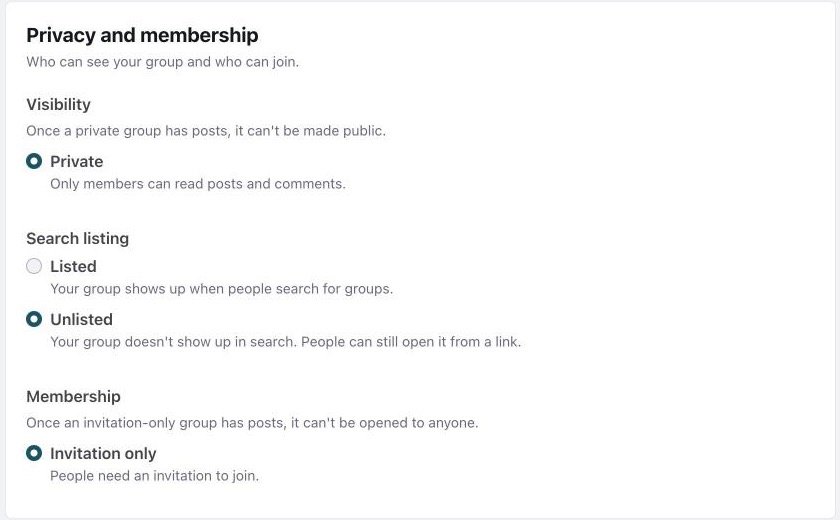
- Privacy and membership. Most groups moving from Facebook want a private group, where only members can read posts. Choose whether it's listed in search and whether anyone can join or it's invitation only. An invitation-only group still lets in anyone with your invitation link (step 4). Decide these before you post: once the group has posts, a private group can't be made public and an invitation-only group can't be opened to anyone.
- Guidelines. Paste in your Facebook group rules. People see them before they join.
- Announcement. A short welcome shown at the top of the group's discussion, such as "New here? Start in General and say hello."
- Channels. One for each topic you noted in step 1. Start with a few; you can add more later. A private channel is for a subset of members, such as a planning committee.
- Owners. Once your other admins have joined, make them owners: in Members, edit each one and change their role to Owner.
3. Bring over what matters
You don't need to bring everything. A fresh start is part of the appeal, and the old group can stay readable on Facebook (step 5). Bring over what members will look for in the first few weeks:
- Key posts. Rewrite your pinned posts and frequently asked questions as posts in the right channels.
- Files. Download the documents from your Facebook group's files and upload them to the Resources tab.
- Reference information. Contact lists, schedules, how-tos and meeting notes work well as notes in Resources, which members can keep up to date.
- Events. Add upcoming events to the calendar. Regular meetups can be set to repeat.
Do this before you invite anyone, so new members arrive to a group that already feels lived in. A few welcome posts of your own help too.
4. Invite your members
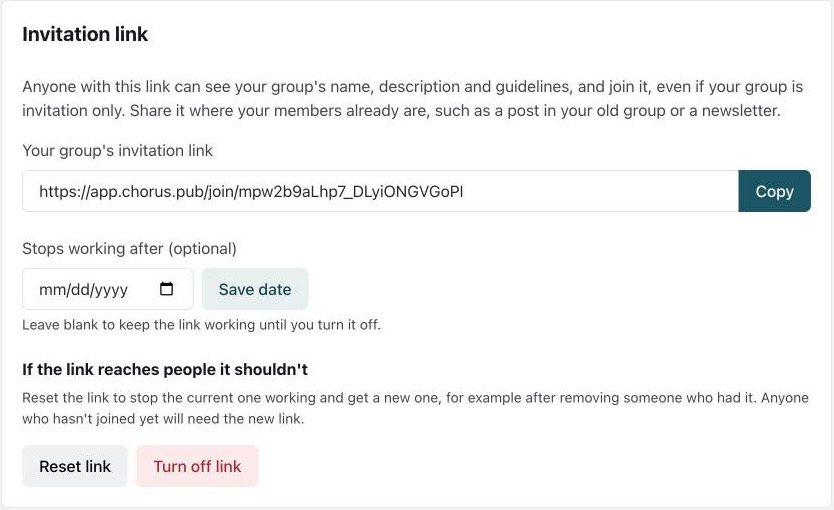
Facebook doesn't give admins their members' email addresses, so the easiest way to invite them is a link. In your group's settings, open Members, choose Manage invitations, then Invitation link, and turn it on. Anyone with the link can read your group's name, description and guidelines, sign up for a free account, and join.
Post the link in your Facebook group and keep the post at the top. Here's a message you can adapt:
We're moving the group to Chorus!
Chorus is a private, ad-free home for groups like ours. Posts show up in the order they're posted, so everyone sees everything, with no ads and no algorithm deciding what you see.
To join, open this link and sign up for a free account. It takes a couple of minutes:
[your invitation link]If you don't land in the group after you confirm your email and log in, open the link again.
You can use Chorus in any web browser, or get the app for iPhone or Android at chorus.pub/apps.html. We'll keep this Facebook group going until [date], then everything happens on Chorus.
Once you've joined, tap the bell at the top of the group to choose how you hear about new posts.
Questions? Reply here and I'll help.
Share the same link anywhere else your members are: a newsletter, a group chat, or an email to the people whose addresses you have. For people you know by email, you can also send email invitations from Invite Members, next to Invitation link, up to 100 at a time.
The link works until you turn it off, or you can give it an end date. If it ends up somewhere it shouldn't, reset it to get a new one.
5. Run both for a while
Members move at different speeds, so keep the Facebook group open while they do, and point every conversation toward Chorus. A timeline that works for most groups:
- Week 1: post the invitation and the date the Facebook group will stop. Post new announcements and events on Chorus first.
- Weeks 2 and 3: when someone posts in Facebook, reply with the link and ask them to post it on Chorus. Remind the group once a week, and message regulars who haven't joined yet.
- Week 4: post a last reminder, then stop posting on Facebook. Facebook lets admins pause or archive a group, which keeps old posts readable while stopping new ones.
Having a set date matters. As long as both groups are active, many people will stay where they are.
6. Help members settle in
Some members will need a hand. These answers cover most questions:
- "Do I need an app?" No. Chorus works in any web browser at app.chorus.pub. For phones, there are apps for iPhone and Android with push notifications.
- "How will I know when something's posted?" Out of the box, Chorus only notifies members when someone mentions them. Each member chooses what else they hear about under Notification Preferences, the bell at the top of the group: new posts, comments and replies by email or push, or a daily summary of unread posts for people who'd rather get one email a day. Mention this in your first welcome post.
- "Why did it send me a code?" Chorus confirms each sign-in with a code sent by email, which keeps accounts safe. Members need to be able to open their email to sign in.
- "I forgot my password." Choose "Forgot your password?" on the sign-in page, and Chorus emails a link to reset it.
More answers are in the FAQ. If you or your members get stuck, email support@chorus.pub. There's a real person on the other end.
Not sure yet? See how Chorus compares with Facebook Groups.